# Casting to Game Instance
After your [Player Connects Wallet](https://cryptonauts.gitbook.io/cryptonauts-docs/auth/wallet), you'll want to present the [Player BNS](https://cryptonauts.gitbook.io/cryptonauts-docs/auth/bns) on the Main Menu.\
\
You will also want to use the players principal address during actual game play to discover various things, such as token balances and ownership status of NFTs, this is also needed for arguments during calling on-chain functionality. \
\
To do this you'll need to leverage the GameInstance, PlayerState, and PlayerController to get this into the game, as well as a Custom Event that executes on the server for multiplayer context.
## GI\_Cryptonauts
Your project might already have a Subclass of the inherent `GameInstance` . If not, you will need to create one.\
In our documentation we will be using our `GI_Cryptonauts`
{% hint style="info" %}
Note: We set our GameInstance subclass `GI_Cryptonauts` as our Game Instance Class in our Project Settings
{% endhint %}
## GI\_Principal
We will need add 1 variable of `GI_Principal` (String type) \
and add 2 new functions to our `GI_Cryptonauts` event graph:
function: `setGI_Principal`
function: `getGI_Principal`
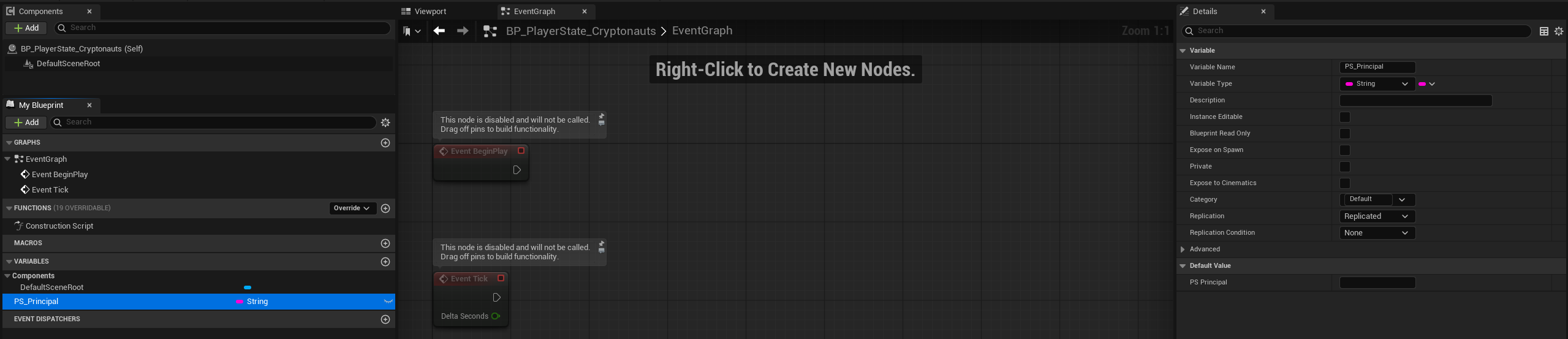
## BP\_PlayerState\_Cryptonauts
Your project might already have a Subclass of the inherent `PlayerState` . If not, you will need to create one.\
In our documentation we will be using our `BP_PlayerState_Cryptonauts` \
We don't need much in our BP\_PlayerState\_Cryptonauts subclass, just a Replicated String Variable name `PS_Principal`
## BP\_PlayerController
Your project might already have a Subclass of the inherenet `PlayerController` . If not, you will need to create one.\
In our documentation we will be using our `BP_PlayerController`
At `BeginPlay` we do a slight delay, to ensure enough load time has passed, then we check for isLocalController, and then we Cast to `GI_Cryptonauts` and call our `getGI_Principal` function, to return our principal that was passed during client auth. From there we call our custom event of `Server_Put_PS_Principal` (see next section)
## Server\_Put\_PS\_Principal
Our `Server_Put_PS_Principal` Custom Event should have `Replication` as `Run on Server`, and `Reliable` `Checked` to indicate true.\
\
The Custom Event should also have an additional Input on it of type String with a label of `InPrincipal` \
We drag from the execution wire and Cast to our `BP_PlayerController_Cryptonauts`
Drag the blue `As BP Player Controller Cryptonaut` output as then type `Set PS Principal` and, be sure to wire in the pink string input `InPrincipal` to the `PS_Principal` in your setter. \
\
To test, you can also add some print strings to see the details show up on screen, after you've connected on Main Menu and then transitioned into a Map.
## Level World Settings
Be sure to use the Player Controller Class as BP\_PlayerController and the Player State Class as BP\_PlayerState\_Cryptonauts (Or what ever you named your SubClasses as)